

LLM Settings
When working with large language models (LLMs), you can
configure a few key settings to control how the model behaves.
These settings shape how random, verbose, or repetitive the
outputs are, and are essential when developing with models like
gpt-4-turbo, Claude,
Gemini, or open-source LLMs. In this article, we
use GPT-4-turbo as our reference example,
though the concepts apply broadly across most providers.
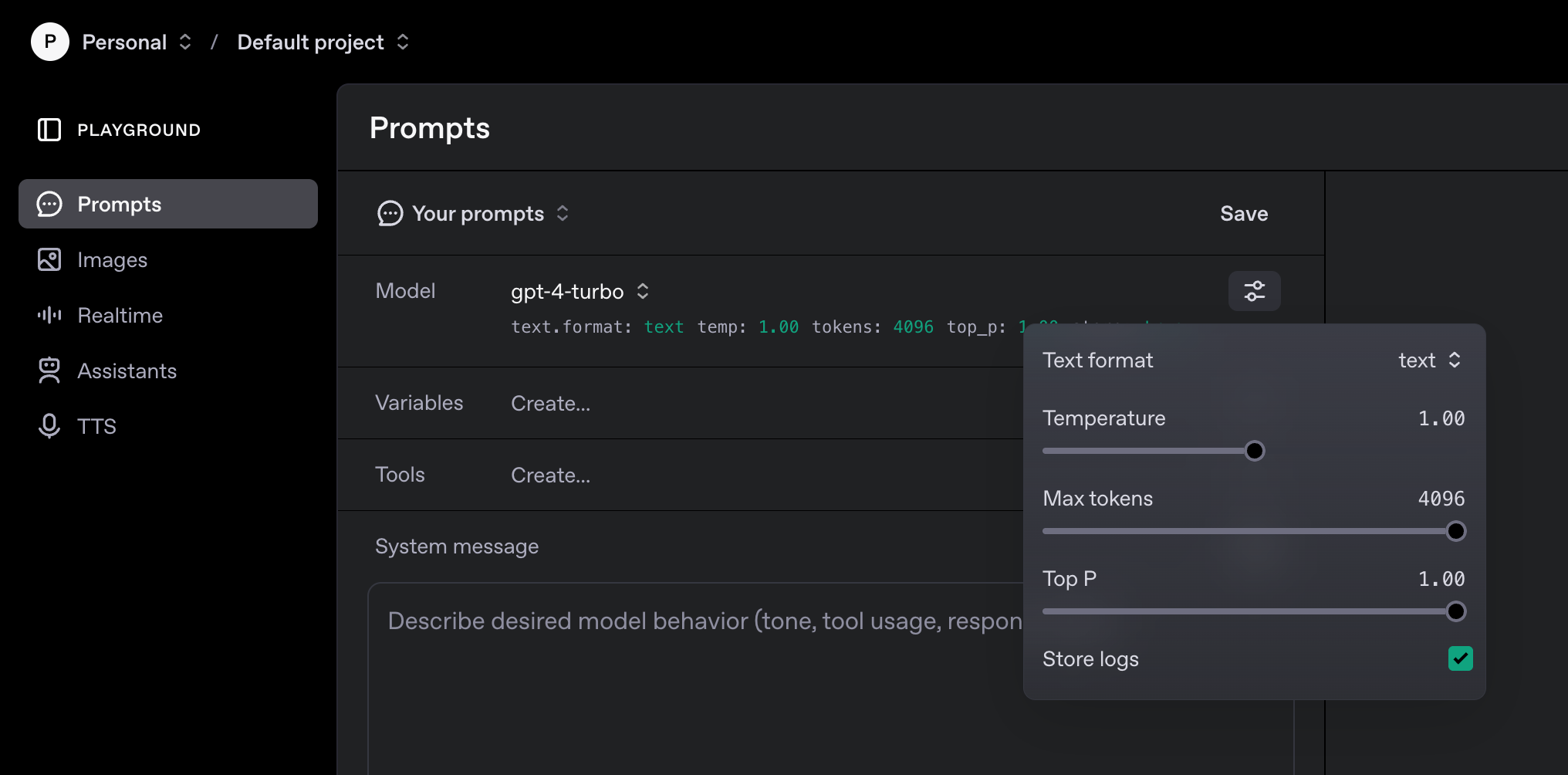
Temperature
Controls the randomness of the model's output. A lower value
(e.g., 0.2) makes the output more predictable and focused, while
a higher value (e.g., 0.8) increases creativity and diversity. A
value of 0 makes the model
deterministic, meaning that for the exact same
prompt, it will always produce the exact same output.
temperature = 0 aims
for determinism, if two or more next tokens have the exact same
highest probability, the specific token chosen might still vary
depending on the model's internal tie-breaking mechanism,
leading to slight non-determinism.
As temperature gets higher (e.g., closer to the
maximum allowed, typically hits a ceiling at 2.0 on most
platforms), all tokens eventually become almost equally likely
to be selected. This results in highly random, often
nonsensical, output.
- Use low values for fact-based tasks or summarization.
- Use high values for brainstorming, writing poetry, or creative content.
Top P (Nucleus Sampling)
Imagine the model is choosing the next word to complete a sentence. Top P defines a dynamic set of the most probable next words from which the model can choose. It does this by considering only the words whose combined probabilities reach a certain threshold (the `p` value).
- Low top_p values (e.g., 0.1): The model becomes very conservative, sticking only to the very safest, most obvious next words. This makes the output very focused and specific.
- Example: After "The dog is...", a low `top_p` would most likely pick "barking" or "running" because those are very common associations.
- High top_p values (e.g., 0.9): The model considers a wider range of probable words, allowing for more diverse and varied output.
- Example: After "The dog is...", a high `top_p` might still pick "barking" or "running," but it could also explore options like "cute," "sleepy," or "friendly," adding more variety.
Tip: It's recommended to tune either `temperature` or `top_p`, not both.
Max Tokens
Sets the maximum number of tokens (words and symbols) the model can generate in a response. Useful for limiting output length or controlling cost.
Important Note: Reducing `max_tokens` simply tells the model to stop generating once the limit is reached. It does *not* force the model to be more concise or stylistically succinct within the given length. If you need short, precise outputs, you'll still need to engineer your prompt accordingly. This hard stop is especially important for structured prompting techniques (like ReAct), where you might want the model to stop before generating unnecessary "thinking" tokens after the desired response.
Some Other Settings to Know About
While many platforms (like ChatGPT Playground) only expose core
settings like temperature, top_p, and
max_tokens, there are other useful parameters you
may encounter in API calls or advanced tools. These give you
more control over the structure, diversity, and behavior of
model outputs.
Top K
Top K limits the model’s output by explicitly
setting a maximum number (K) of the most probable
next tokens to consider at each step. The model will then only
select its next token from this restricted set of K
options. This technique helps to reduce the generation of
incoherent or nonsensical text by focusing on the model's
highest-confidence predictions.
-
Low
top_kvalues (e.g., 1): Atop_kof1means the model always selects the single most probable token from its entire vocabulary. This is known as "greedy decoding" and leads to highly predictable, conservative, and often repetitive output. -
High
top_kvalues (e.g., 40 or higher): The model considers a larger pool of the most probable words. This allows for more variety and diversity in the output, as it has more options to choose from within that topKset. Generally, higher values lead to more random responses, while lower values lead to less random responses.
Illustrative Example: Filtering with Top K
Imagine the model has just produced "I'll have the...", and it calculates the following probabilities for the subsequent word:
sandwich: 0.6
coffee: 0.3
salad: 0.2
juice: 0.1
tea: 0.05
water: 0.01
soda: 0.003
... (and many other words with decreasing probabilities)
If top_k is set to 3, the process
unfolds as follows:
-
The model identifies the three words with the highest
probabilities:
{sandwich (0.6), coffee (0.3), salad (0.2)}. -
It then re-normalizes the probabilities
solely among these three words so that their sum
equals 1. (For instance, their original sum is 0.6 + 0.3 + 0.2
= 1.1. After re-normalization, the new approximate
probabilities would be:
sandwich ~0.54,coffee ~0.27,salad ~0.18. - Finally, the next word is sampled from this re-normalized distribution, ensuring the selection is strictly confined to these top 3 candidates.
This mechanism effectively "limits the output" by excluding any
words beyond the K most probable tokens from the
original distribution. It allows for a strategic balance between
prioritizing the most likely and coherent tokens versus enabling
more creative or diverse sampling within the defined scope.
The default top_k value can differ across models
and providers; however, 40 is a frequently
encountered default setting.
Interaction with other settings: When
Top K, Top P, and
Temperature are all used, the model typically first
applies Temperature to scale the initial token
probabilities. Then, Top K filters this
temperature-scaled set. Subsequently, Top P further
refines the tokens remaining within that Top K set.
Finally, the model samples the ultimate output token from this
filtered and temperature-influenced collection.
Tip:Top Koffers a more direct way to control the sheer number of token options, whereasTop Padapts more dynamically to the underlying probability distribution. Experimentation is key to discovering which method best suits your specific task requirements.
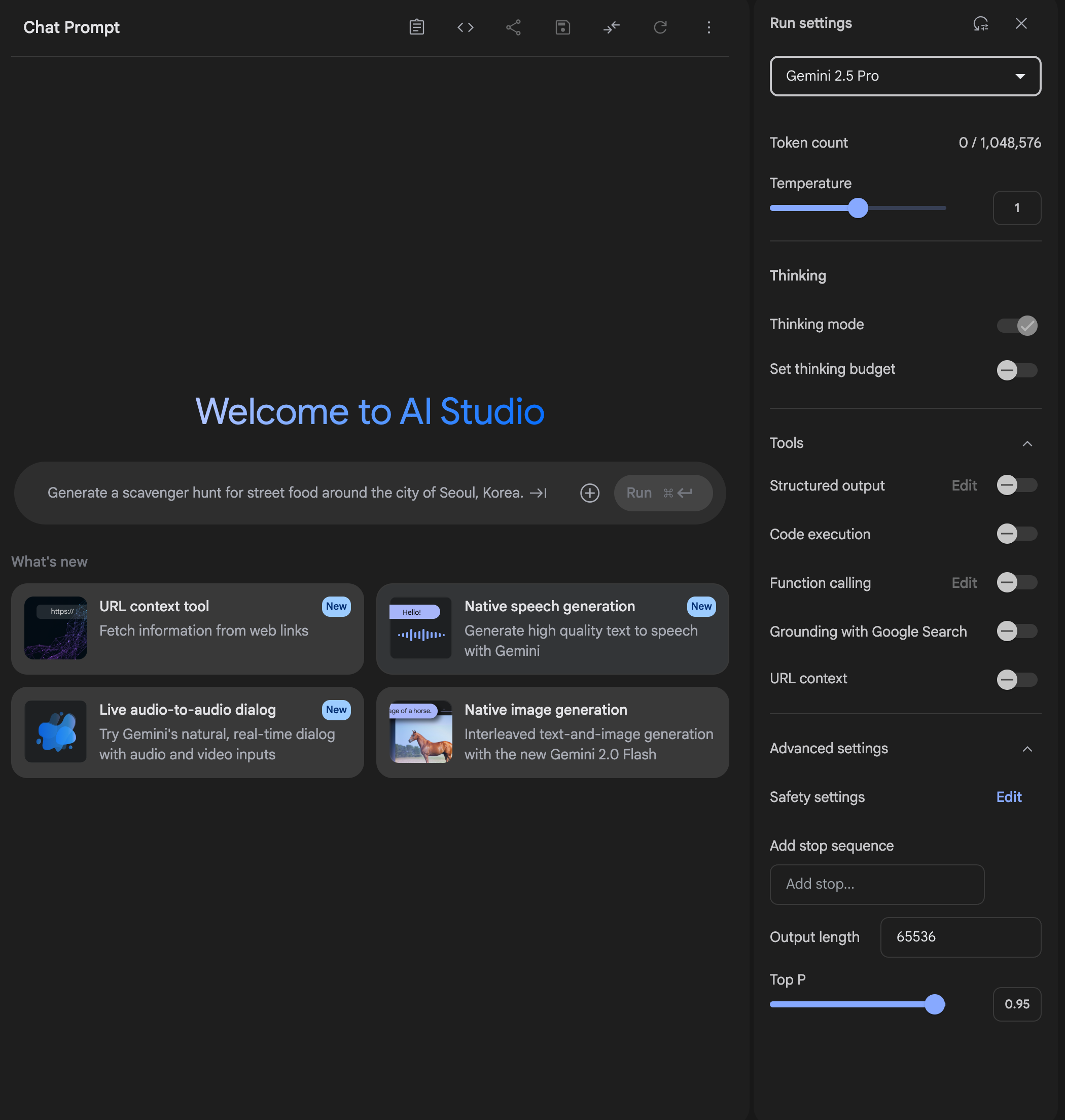
Stop Sequences
What it is: A stop sequence is a specific
string (like ---END--- or STOP) that
tells the model, “stop generating text here.”
Once the model outputs that string — even partially — it immediately halts its response. You choose stop sequences that the model won’t accidentally generate unless you guide it to.
Example
Your Prompt:
List three facts about the Moon:
1.
2.
3.
---END---

Stop Sequence: ---END---
Model Output:
1. The Moon is Earth’s only natural satellite.
2. It affects Earth’s tides.
3. Its surface is covered in craters.
---END---
When ---END--- is reached, the model stops — no
extras, no rambling.
Why it's useful
- Structured Output: Force clean endings to lists, code, JSON, or tables.
- Prevent Run-On: Stop the model from adding explanations or continuing unnecessarily.
- Control Cost: Saves tokens by stopping output when your task is done.
Tip: Design your prompt to include the stop sequence as a natural closing cue — that’s when it works best.
Frequency Penalty
This setting reduces the chances of the model repeating the same word multiple times by applying a penalty each time a token is repeated. The more frequently a word appears in the prompt or output, the less likely it is to appear again.
Use it when: You want more varied word choices and less repetition.
Example
Without Frequency Penalty:
"The cat sat on the cat mat. The cat was fluffy."
With High Frequency Penalty:
"The feline sat on the pet mat. The animal was fluffy."
In this example, cat appears repeatedly without a
penalty. When frequency penalty is applied, the model opts for
alternatives like feline and animal,
promoting word variety.
Presence Penalty
This setting discourages the model from repeating any word that has already appeared — even if it was used just once. It’s useful when you want the model to introduce 'new topics, ideas, or phrasing', rather than circling back to the same subject.
Use it when: You want more exploration or diversity in subject matter.
Example (continued from frequency penalty)
Earlier Output with Repetition:
"The cat sat on the cat mat. The cat was fluffy."
With Frequency Penalty:
"The feline sat on the pet mat. The animal was fluffy."With Presence Penalty:
"The dog lounged on the mat. Birds chirped nearby."
Explanation: The frequency penalty helped vary
the wording around "cat," but the presence penalty went further
— it avoided the topic altogether by introducing
dog and birds. This illustrates how
presence penalty nudges the model to explore entirely new ideas.
Context Window
The context window is the maximum number of tokens an LLM can "see" at once. It includes both your input prompt and the model’s output. If your prompt is too long, earlier parts may be truncated or ignored.
Why it matters: If your prompt + expected output exceeds the model’s limit, the beginning of your input will be cut off — and the model won’t 'remember' it. This can lead to loss of context or misunderstandings.
Example
Model: GPT-4-turbo
Max context window: 128,000 tokens

Your prompt: 100,000 tokens
Max response: 128,000 - 100,000 = 28,000 tokens
What happens if you exceed it? If your prompt is longer than 128,000 tokens (say, a huge conversation history or multi-document input), the model will drop the oldest parts to stay within the limit — which can lead to loss of context or misunderstandings. Always plan prompt length and expected output size carefully.
Tips
-
Defaults are often:
temperature = 1,top_p = 1 -
For reproducibility (if supported), use a fixed
seed. -
Use
logprobsto inspect how confident the model is in its predictions (advanced use).
Example Setup
{
  model: "gpt-4-turbo",
  temperature: 0.7,
  top_p: 1,
  max_tokens: 500,
  stop: ["\n###"],
  frequency_penalty: 0,
  presence_penalty: 0.6
}
Understanding and tuning these settings helps you get more reliable, creative, or structured results depending on your application. All examples in this series use GPT-4-turbo unless otherwise noted.
How to Set These Parameters Using OpenAI's API
When using the openai API directly, you set
parameters like temperature, top_p, max_tokens, and others in
the request body. Here's an example:
curl https://api.openai.com/v1/chat/completions \
  -H "Authorization: Bearer YOUR_API_KEY" \
  -H "Content-Type: application/json" \
  -d '{
    "model": "gpt-4-turbo",
    "messages": [
      { "role": "user", "content": "Write a haiku about space" }
    ],
    "temperature": 0.7,
    "top_p": 0.9,
    "max_tokens": 100,
    "stop": ["###"],
    "frequency_penalty": 0.3,
    "presence_penalty": 0.6
  }'
You can’t change the context window — it’s
fixed by the model. For example,
gpt-4-turbo supports up to
128,000 tokens.
If your input messages plus expected output exceed that limit, the model will truncate earlier content or return an error. Always plan prompt length and expected output size carefully.
Tip: Choose a Model That Matches Your Context Needs
Some models support larger contexts than others. Consider these:
- GPT-4 Turbo: 128,000 tokens (OpenAI Docs)
- Claude 3 Opus: up to 200,000 tokens (Anthropic Docs)
- Gemini 1.5 Pro: rup to 2 million tokens (Google Vertex AI Docs) (Google Vertex AI Docs)
- LLaMA 3.1: 128,000 tokens (Meta Docs) (HuggingFace LLaMA models)
Choose your model based on your context and task complexity. You don’t always need the biggest window — just the right one for the job.